Instagram without harsh crops
Portrait, landscape and square images get space without forcing a bad crop.
Drop your images here, choose a white or black border and download the framed files. Perfect for individual photos. For full series, TIFF files or Capture One and Lightroom workflows, my Pro tools are the faster route.
For quick single images: choose border width, set color, download.
A good border gives the photograph space. It separates image and surroundings, makes series calmer and gives Instagram posts, portfolios and client PDFs a cleaner presentation.
Portrait, landscape and square images get space without forcing a bad crop.
White borders feel like a digital passepartout and make series more consistent.
A subtle border makes contact sheets, moodboards and selection galleries feel more considered.
Choose JPG or PNG. Processing happens directly in your browser.
Choose a pixel width and switch between white and black.
Download the finished file. With several images you can start all downloads one after another.
There is no magic pixel value. The right width depends on where the image will be seen. I usually start with a border that gives the photo air without making the subject feel too small.
40 to 90 px often works well because the border remains visible on a phone without shrinking the image too much.
60 to 140 px feels calmer, especially when several images sit next to each other.
Wider borders can work beautifully when the image should feel more like a presented print.
White feels airy and editorial. Black is more graphic, denser and can frame bright images strongly.
The free online tool is intentionally quick and simple. Real workflows often need presets, larger batches, local processing without browser limits, Capture One or Lightroom integration, or watermark and EXIF output.
Frames, passepartout looks and batch processing directly on your Mac.
The practical Windows version for automatic white or black image borders without Photoshop.
Add logo, copyright, watermark or EXIF data to whole image sets.
A simple white or black frame can feel calm, graphic or social-ready, depending on the image.




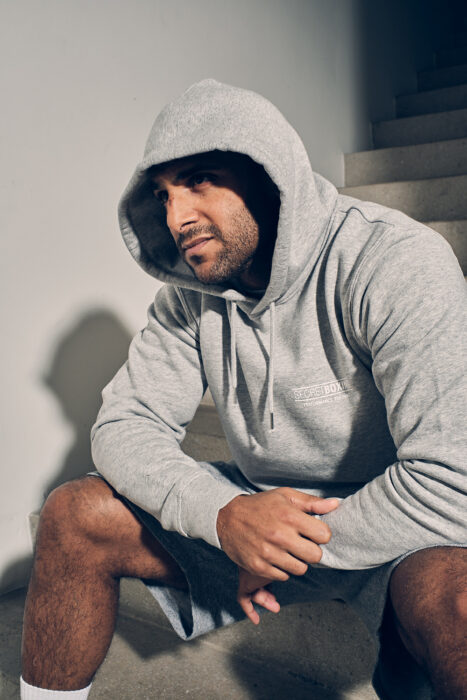

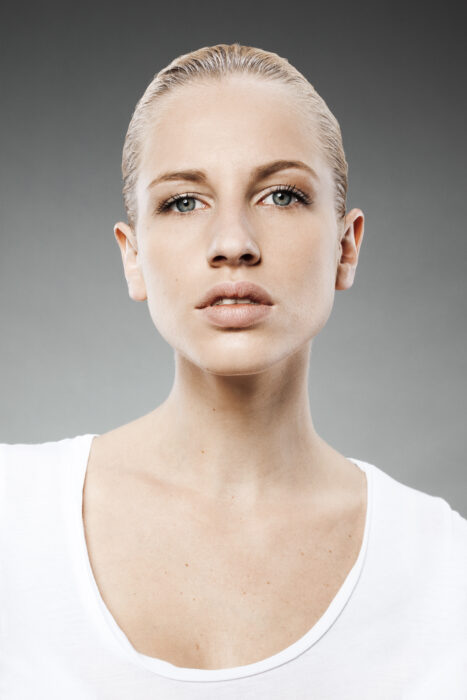
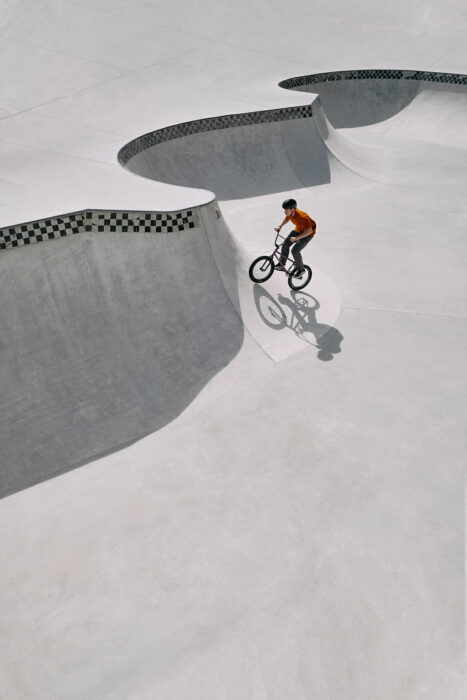
If you search for “white border photo”, “photo frame online” or “online border tool”, you probably do not want to install an app first. This is why the browser tool stays free. For professional image series, the Pro versions are better because presets and repeatable exports save time.
Upload your image, choose white as border color, set the width and click “Create border”. Then download the finished file.
Yes. You can frame individual images for free without signing up. For large batches, TIFF files and presets, use the Pro tools.
Yes. The tool processes your image at full resolution in the browser and keeps JPEG compression minimal (quality 94%). Your photos stay sharp after adding a border.
No. JPG and PNG files are processed entirely in your browser. Your images never leave your device.
It is faster and more repeatable for real workflows: presets, batch processing, local exports and integration with your photo workflow.
Use the Online Tool for a single image. If you present images regularly, one of the Pro tools quickly pays for itself.