Image borders on Windows – Border Tool for Capture One & Lightroom
You work on Windows and edit your photos in Capture One or Lightroom Classic, but adding clean white or black borders is unnecessarily complicated? That’s exactly the problem the Border Tool for Windows solves: add image borders automatically on export or via drag & drop in Windows Explorer – no additional software required.
“Until now, I could only add a white border via a workaround in Lightroom. Now it works directly from Capture One – saves me a lot of time and effort!”
Nils – Verified buyer, ⭐⭐⭐⭐⭐
Image borders on Windows – the problem in Capture One & Lightroom
Images with borders look more finished, more professional and clearly stand out from the background – whether in online galleries, PDFs, presentations or when delivering images to clients. On Windows, however, achieving this is often cumbersome: Capture One and Lightroom Classic don’t offer a convenient border feature, and tools like Photoshop quickly turn this into repetitive manual work.
The Border Tool for Windows fills exactly this gap. You can add borders directly during export or apply them afterwards via drag & drop in Windows Explorer – without layers, presets or additional Photoshop steps.
Your image itself remains untouched: the border is added around the outside, no cropping involved.
Border Tool for Windows – features at a glance
With the Border Tool, you have full control over how your borders look and can integrate it seamlessly into your Windows workflow.
- Add white or black borders directly on Windows
- Select border widths from 1 px up to 1500 px
- Drag & drop support directly in Windows Explorer
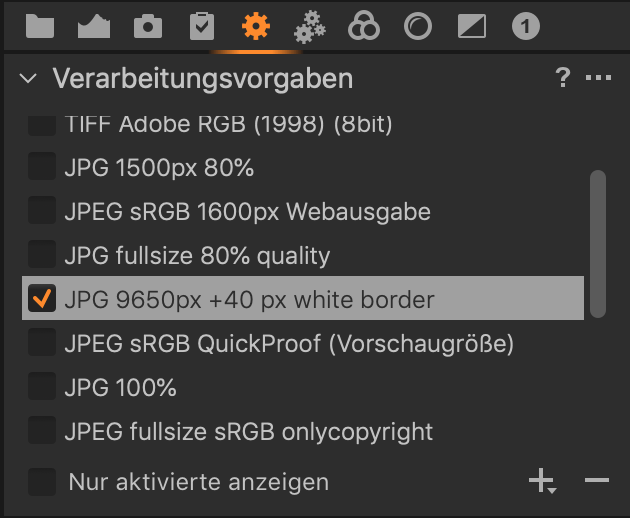
- Integration into Capture One Pro via processing recipes
- Also works with Lightroom Classic (Export > Post-processing)
- Ideal for single images and large batches – weddings, events, reportages
- Borders are always added outside the image, the original photo remains untouched
If you also work on a Mac, you can find the matching version here:
Border Tool for macOS.
I built this tool exactly the way I need it in my own photography work: lightweight, unobtrusive and running quietly in the background. No extra image editing software, no manual steps – start your export or drag files onto the tool, and moments later your images are ready with clean borders.
How to work with the Border Tool on Windows
1. Add borders via drag & drop in Windows Explorer
You already have finished JPG files in a folder and want to add borders quickly?
Select the images in Windows Explorer, drag them onto the Border Tool – done.
After a short moment, your files are ready with clean white or black borders, ideal for social media, online galleries or client PDFs.
2. Add borders during export from Capture One Pro
In Capture One Pro, you can integrate the Border Tool into your processing recipes.
This allows you to export one version without borders and, at the same time, another version with a thin or wide border.
The border is added automatically after export – no additional manual steps required.
3. Add borders during export from Lightroom Classic
The Border Tool can also be used in Lightroom Classic as a post-processing step.
You export your images as usual, Lightroom calls the tool automatically, and your photos receive the selected border.
Especially when working with large image sets, this saves a significant amount of time.
The video shows the workflow using the macOS version – the process on Windows works exactly the same. You simply choose border color and width – everything else runs automatically.
Examples: images with borders created using the Border Tool for Windows
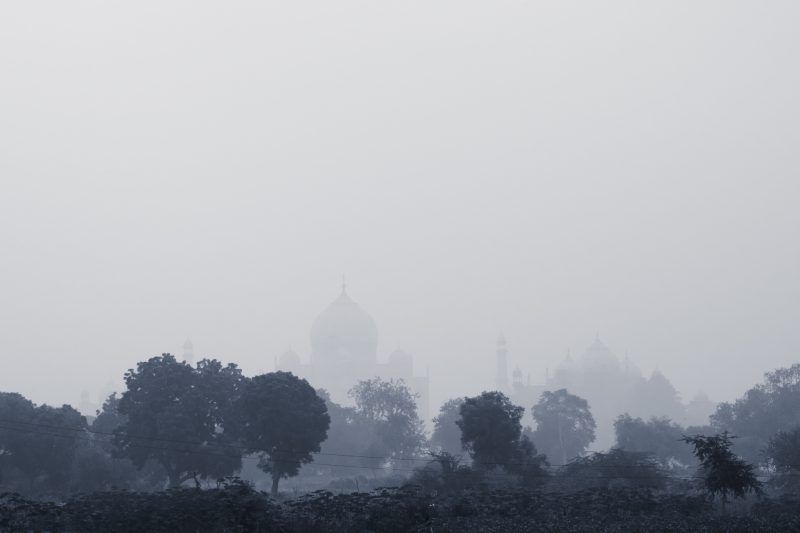
All example images were framed using the Border Tool.
You’ll see subtle, thin borders as well as wider borders that create a strong print-like look.
This makes it easy to decide which border width best fits your image and presentation.
Installation on Windows – ready to use instantly
The Border Tool for Windows requires no complex installation. The tool can be run directly – no installer and no additional image editing software needed.
Recommendation: create a dedicated folder for the Border Tool inside your Programs directory. This keeps everything organized and allows you to integrate the tool cleanly into export workflows.
Once the location is set, you can start immediately: drag images from Explorer onto the tool or use it as a post-processing step in Capture One or Lightroom.
Why white or black borders work so well
A border clearly separates your image from its surroundings – on a website, in a slideshow, inside a PDF or on social media. The viewer’s eye stays on the image longer, contrasts appear stronger,
and the photo gains a finished, print-like character.
A white border works especially well on bright layouts and with light, minimal subjects.
A black border creates strong contrast and is ideal for dramatic scenes, night photography and portraits with depth.
With the Border Tool for Windows, you can test both styles in seconds – no layers, actions or presets required.
About Michael Damböck
I’ve been working as a photographer for many years, focusing on landscape, portrait and commissioned photography.
In my own workflows, I searched for a simple way to automatically add clean borders to images – without extra software and without editing each image individually.
That need led to the creation of the Border Tools. They are designed to save you the same amount of time they save me: fewer clicks, less frustration – more focus on image content and visual style.
What users say about the Border Tool for Windows
“Great tool and excellent support! My question was answered immediately and my issue solved. I used to add white borders via a workaround in Lightroom – now it works directly from Capture One.
Saves me a lot of time and effort!”
Nils
Verified buyer – ⭐⭐⭐⭐⭐
“Outstanding service! I had a question about adjusting the border and it was solved within two minutes. The white borders look fantastic and once you understand the workflow, the tool is very easy to use.
Highly recommended.”
Klaus
Verified buyer – ⭐⭐⭐⭐⭐
“The idea is brilliant and works flawlessly. I especially like that the tool also works with Lightroom Classic when used as a post-processing step during export.”
Stephan
Verified buyer – ⭐⭐⭐⭐⭐
“I was looking for a tool to add borders to images and came across the Border Tool for Windows. I don’t use Capture One Pro, but I could use the tool directly on Windows. Drag & drop, select border, done – much faster than anything I tested before.”
Stephan
Verified buyer – ⭐⭐⭐⭐⭐
Reviews
There are no reviews yet.