


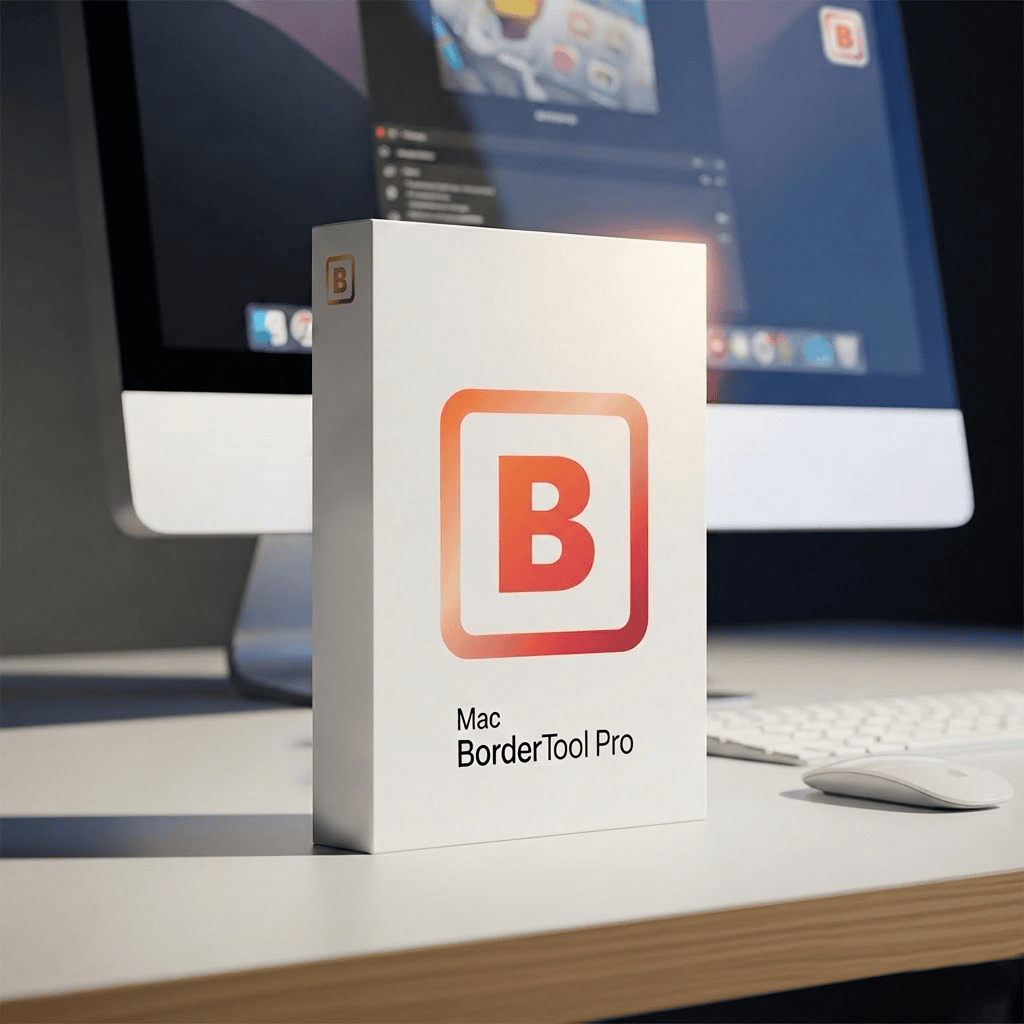


One-Time Purchase · No Subscription
+ Photos Extension
macOS 11+
Universal Binary
🔒 Apple-notarized
Frame photos & add mat borders.
In seconds. Without Photoshop.
BorderTool Pro is the menu bar app for photographers – drag in single images or entire folders, load a preset, done. With live preview, color harmony, black-and-white conversion, drop shadows, Polaroid mode, and real batch power. Includes the Apple Photos Extension.
100% local. Offline. One-time purchase.
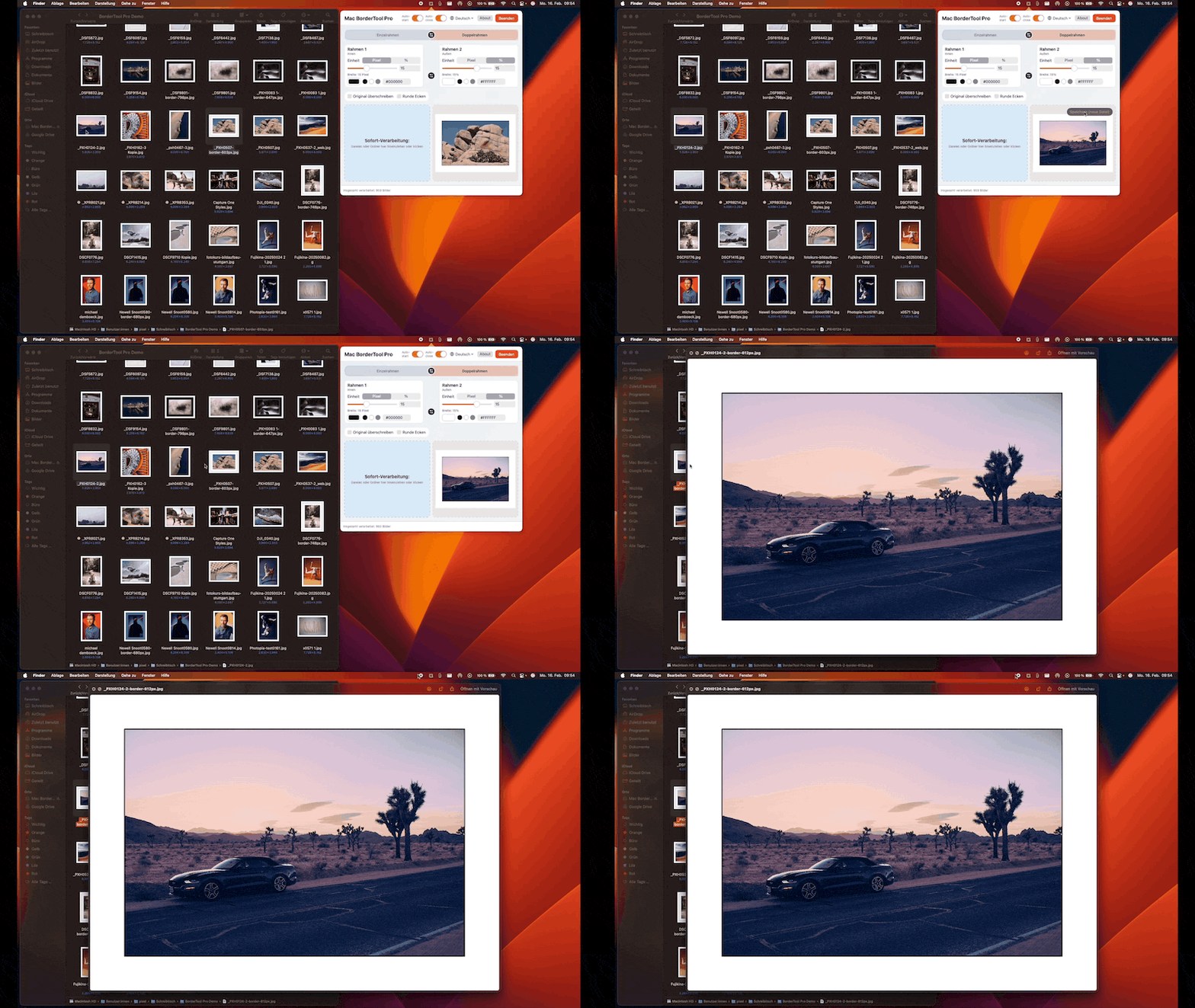
Drag an image into the menu bar → choose settings → save. That fast.
More style. More speed. More control.
Features that genuinely change your workflow – built from real photographer feedback.
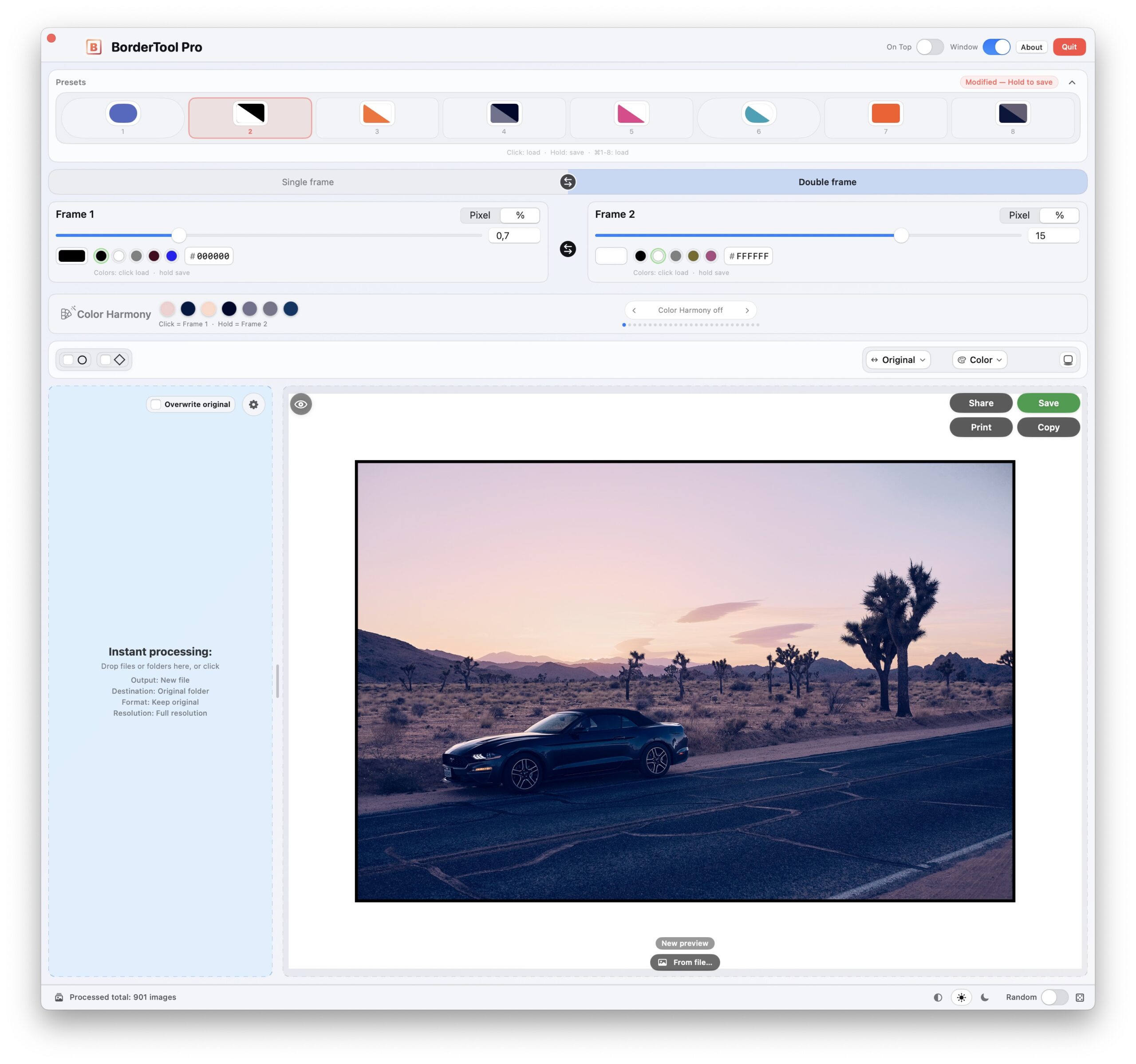
Offset, softness, opacity, and angle – all values are percentage-based, so the result stays perfectly consistent at any size. Works just as well for web export as it does for print resolution. No manual recalculations.
Save complete configurations – colors, widths, units, corners, shadows, everything. Load them instantly with ⌘1–8. Hold = save. Perfect for brand-consistent workflows.
⌘1
⌘2
⌘3
⌘4
⌘5
⌘6
⌘7
⌘8
The app analyzes your photo and automatically suggests 7 color modes: Dominant, Vibrant, Light, Dark, Edge, Average, and Intense. Cycle through them with the H key. For double borders, there are 12 predefined color-pair combinations – ⌘H toggles Color Harmony on and off.
Convert your color image to black and white while framing it – no extra app needed. Choose from multiple looks: classic, hard, soft, or film. Adjust intensity and color filters continuously. The frame stays colored – only the image is converted.
1:1, 4:5, 9:16, 1.91:1, 3:2, 16:9, and more – the original image is never cropped. The frame fills the difference to the target format. Switch between landscape and portrait with one toggle. Polaroid mode: a wider bottom border for that classic instant-film look.
Color picker + HEX input (#RGB / #RRGGBB) + 5 quick slots per border. Click to load, hold to save. Configure it once and get perfectly repeatable results every time.
F5F0E8
Not sure which look fits best? R = roll the dice. The app randomizes colors, widths, single or double borders, corners, shadows, and Polaroid mode – with tasteful probabilities built in (56% neutral tones, 28% shadows, 52% double borders). Fresh results every time. Perfect for creative exploration.
Widths
Corners
Shadows
Polaroid
px / %
Just drag in iPhone photos in HEIC/HEIF format – no pre-conversion, no workaround. The format stays intact by default. You can optionally switch output to JPEG, PNG, or TIFF.
PNG
TIFF
BMP
GIF
HEIC ✓
HEIF ✓
Choose from three corner styles: square, chamfered (45° cut), or rounded. Each style is selectable on its own – not combined.
⌘V = paste an image directly from the clipboard – from screenshots, Safari, Mail, or any other app. ⌘C = copy the result back to the clipboard – ready to paste into Mail, Keynote, Pages, or chat. No saving, no Finder detour.
⌘C Copy
BorderTool Pro lives in the menu bar – always there, never in the way. Use the title bar toggle to detach the popover into a standalone window: freely movable, resizable, and fully drag-and-drop capable.
Freely resizable
Side-by-Side
Switch instantly – no restart required.
🇬🇧 EN
🇫🇷 FR
🇪🇸 ES
🇮🇹 IT
🇳🇱 NL
🇨🇳 ZH
🇯🇵 JA
🇵🇱 PL
🇵🇹 PT
🇸🇪 SV
🇹🇷 TR
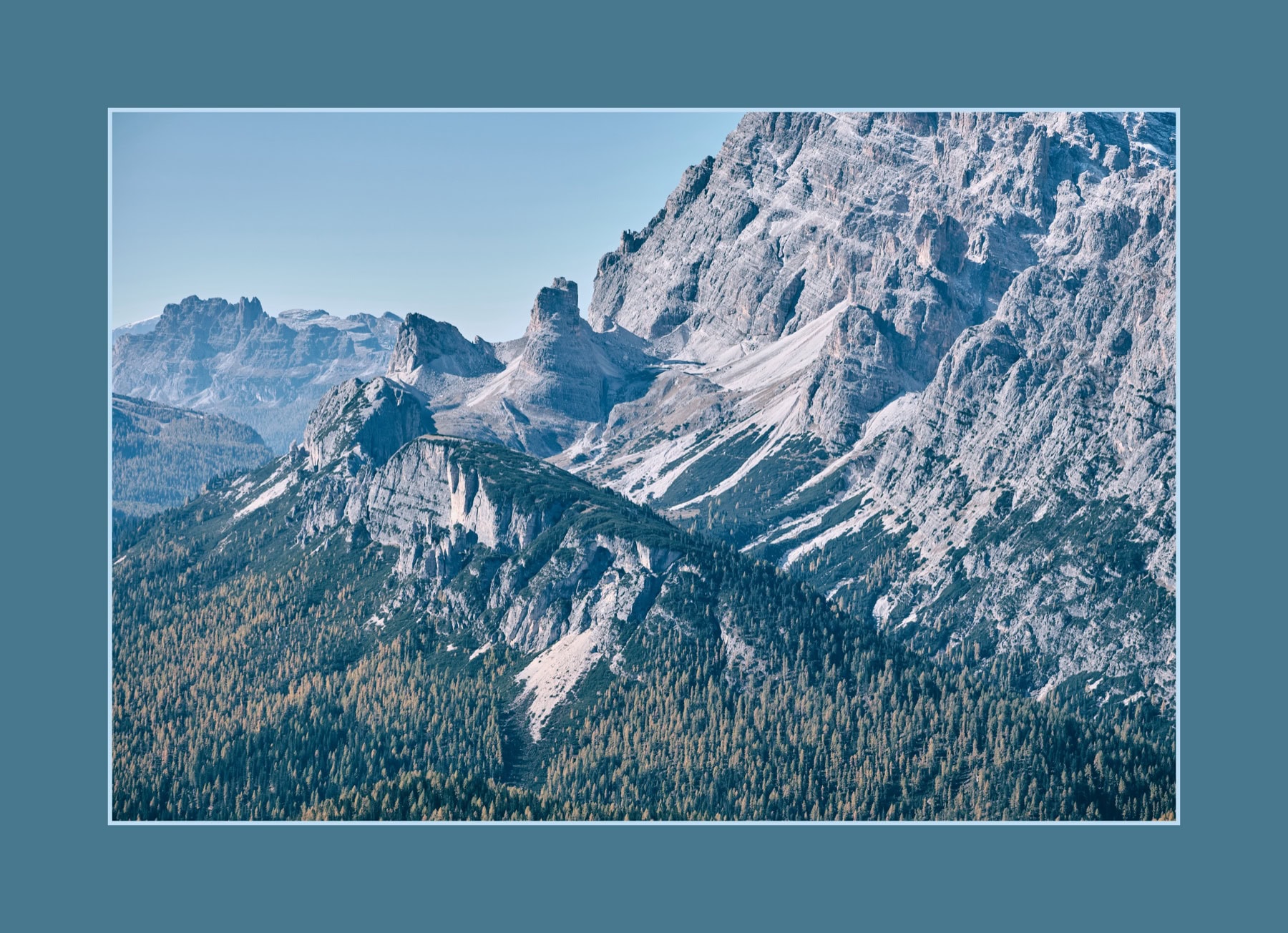
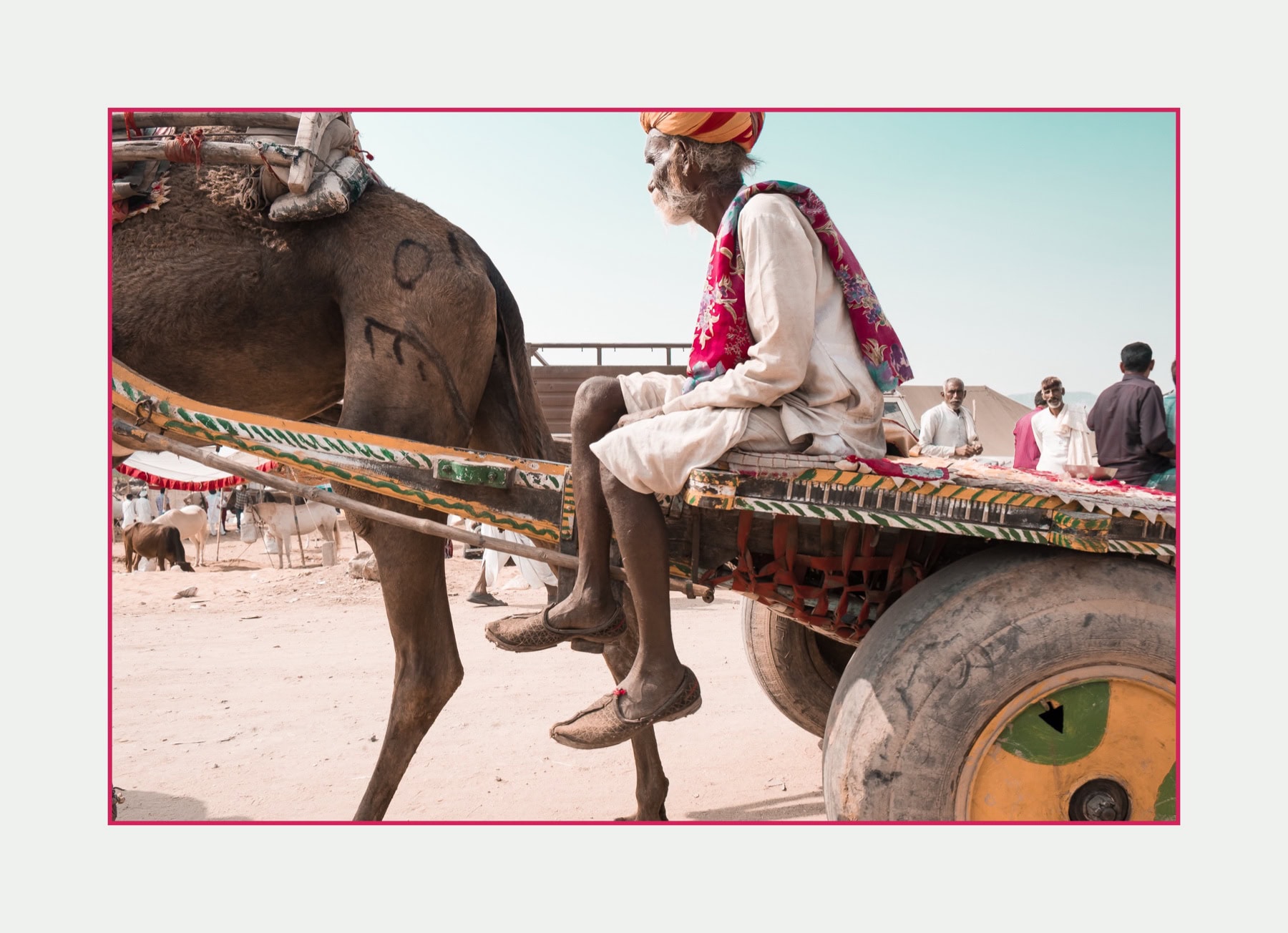
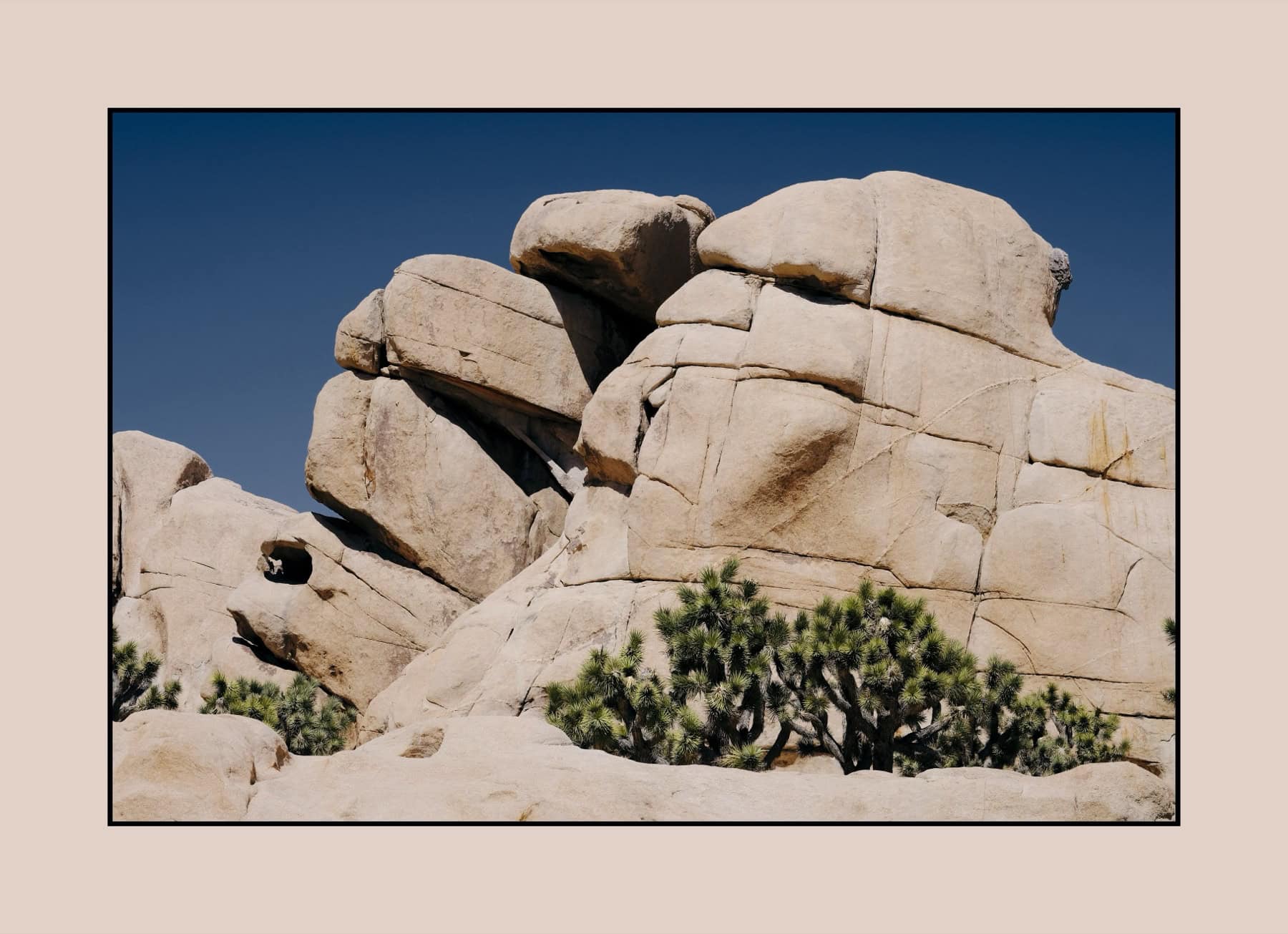
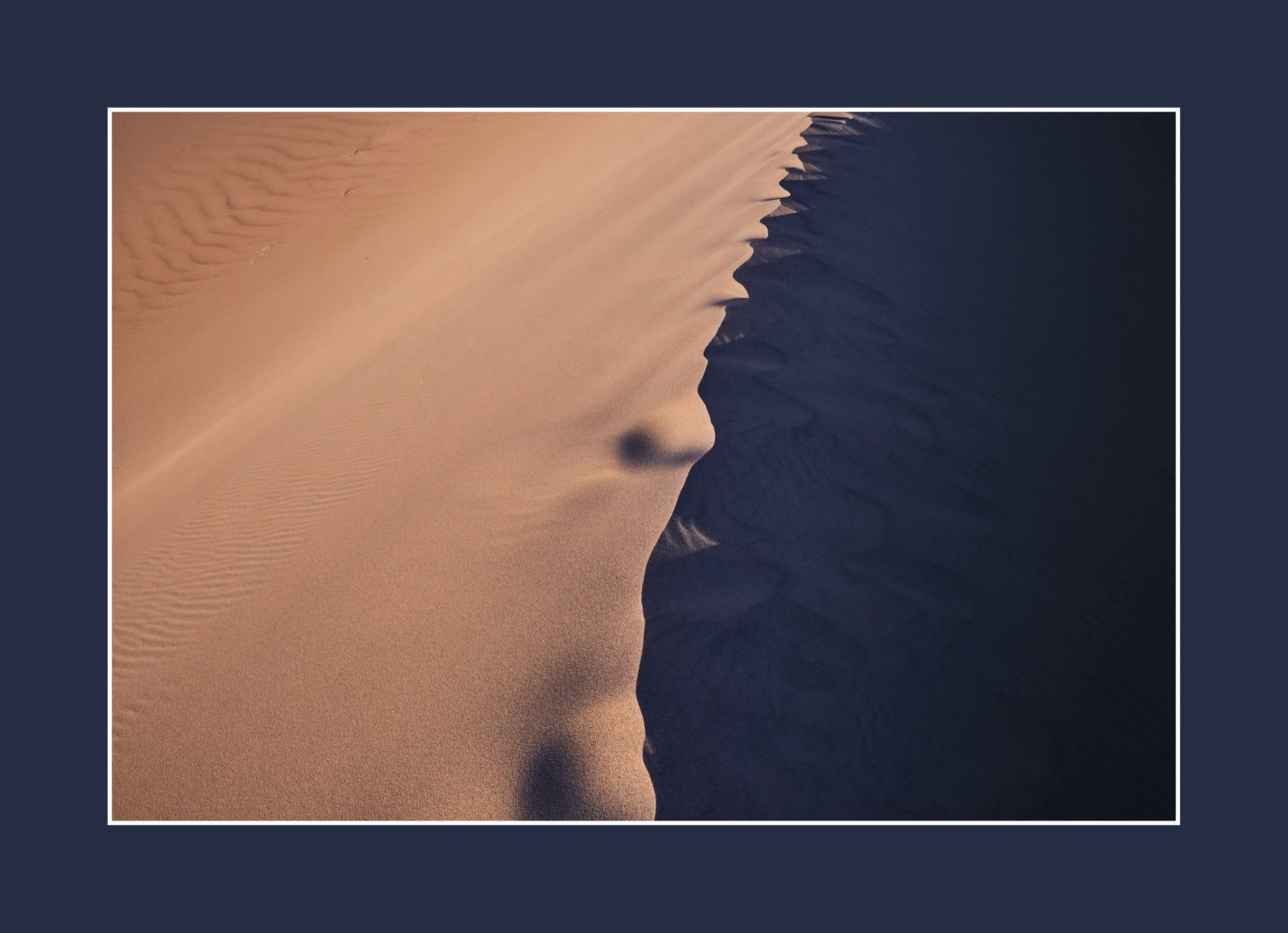

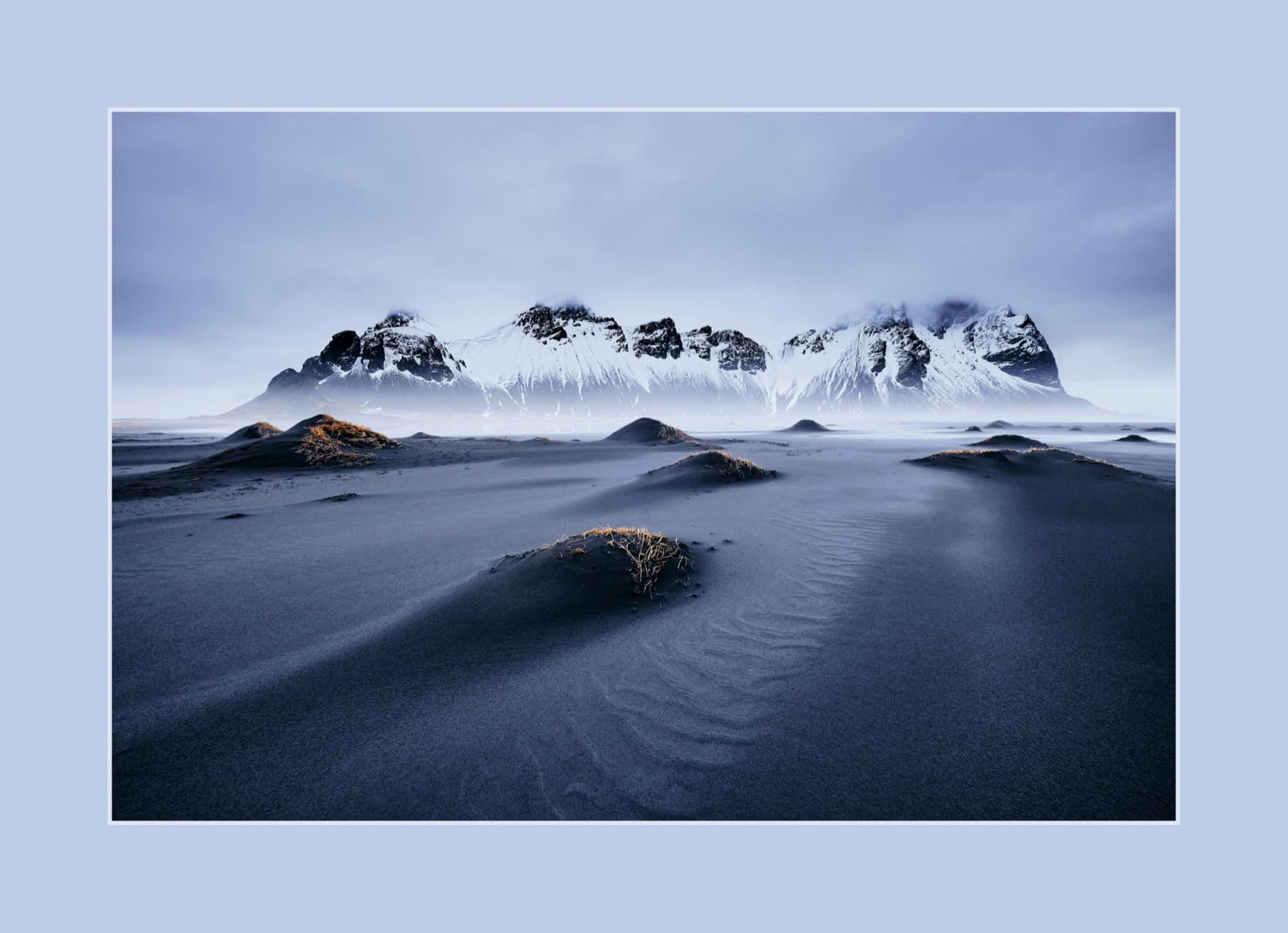
Apple Photos Extension.
Add borders directly inside Apple Photos – no export, no detour. The original always stays intact. All settings from the main app are available, including presets and random mode.
Choose a photo → click Edit → select BorderTool Pro. Configure the frame, check the preview, save. Apple Photos automatically preserves the original.
Return to the original at any time – Apple Photos keeps the untouched image. Frames can be changed or removed completely without any quality loss.
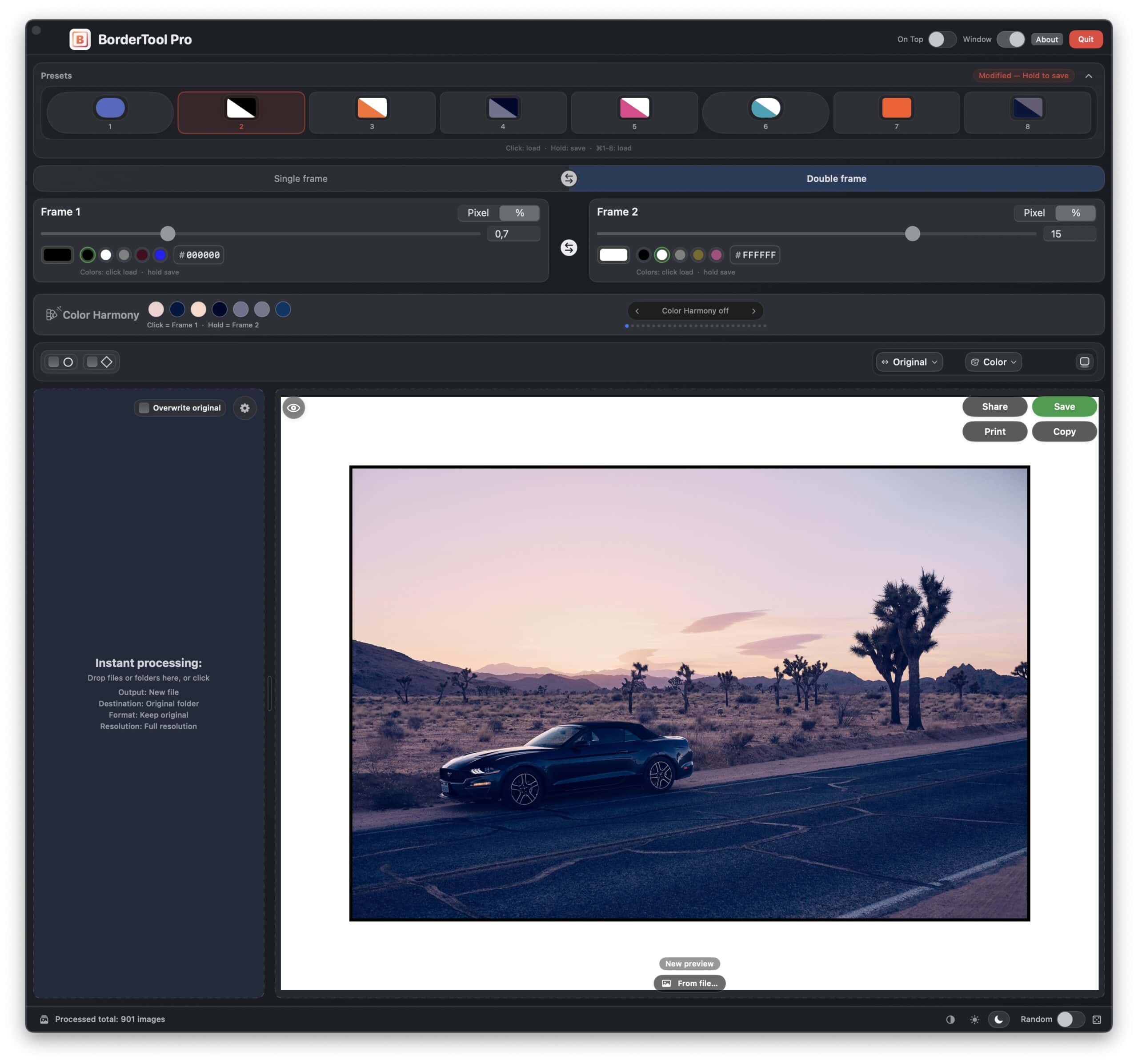
All features from the main app: double borders, Color Harmony, black & white, shadows, corners, presets, and random mode. Live preview in the sidebar. Keyboard shortcuts work too.
An interface you understand instantly.
Light mode & dark mode.
Large drop zones. Sliders & numeric inputs. Color picker & HEX. Presets. Color Harmony. Quick Look. Everything directly in the menu bar popover – or in a standalone window.
↓ Scroll down
Space = Quick Look · ⌘1–8 = Preset · X = Colors tauschen · H = Color Harmony · R = Random · D = Defaults
Drei Darstellungsmodi: System, Light oder Dark. Umschaltbar im Footer.
How to launch it – right from Finder.
BorderTool Pro is deeply integrated into the Mac ecosystem. No launching, no browsing around – you work exactly the way you already do.
Drag files or entire folders directly onto the menu bar icon – BorderTool Pro launches instantly with your current settings.
Select an image in Finder → right-click → “Open With” → BorderTool Pro. Also works with multi-selection and entire folders.
Share the finished image directly from the preview – via AirDrop, iMessage, or email. Print with ⌘P at full resolution, without any Finder detour.
iMessage
⌘P Print

Full control.
Set up once, always ready.
The preferences panel is not cosmetic – this is where the real batch power lives. Once configured, every export runs exactly the way you want it to.
Always create borders in percent – never in pixels.
A 3% border looks just as proportional on a 1080px Instagram export as it does on a print-ready 6000px image. Fixed pixel values tend to look too heavy on small outputs and almost invisible on very large prints. Set it once in percent and it stays consistent – no matter the camera or aspect ratio.
“BorderTool Pro brings high-end digital framing to the macOS menu bar – a lightweight alternative to heavy Photoshop workflows. Operates completely offline with no cloud dependency.”
“BorderTool Pro could become a standard tool for many photographers – a Mac app by a professional photographer that makes the gallery look fast and effortless.”
“I shoot with a Fujifilm X-E5 and use the film simulations directly, so my photos already come out of the camera feeling finished. I have no desire for complicated post-processing anymore. I used to try building borders in Affinity, but the learning curve never matched the result. BorderTool Pro is exactly the fast, uncomplicated solution I had been missing. As a music producer I have spent a lot of money on far less efficient plug-ins – this tool is an easy decision.”
“Borders are a fixed part of my look, so this tool arrived at exactly the right time. I always used Darkroom before, but compared to this it is simply slow and awkward. It also lacks the double border. Even entire folders can now be processed unbelievably fast. What I love most is that no additional software is needed to get beautiful results. I would buy it again anytime.”
“Update: only four days have passed since my last review, but the app has already received so many new features that I had to write another one. My wish for HEIF support was implemented, the presets are incredibly useful, and the drop shadow looks elegant. I honestly cannot think of more improvements right now – the tool is exceptionally well done.”
“I was always too lazy to add borders to my images. Now I can dress them up with as many border variations as I want without lifting a finger. The batch workflow from Capture One is especially well solved. I am genuinely thrilled and can now frame large numbers of my photos in one go without breaking a sweat.”
“I use Luminar Neo, and while adding borders there is possible, it is awkward and very time-consuming with multiple images. The small BorderTool already served me well before. The new BorderTool Pro expands the functionality enormously and is genuinely fun to use thanks to the graphical interface.”
“The ability to add two separate borders, corner styles, colours and then save them as presets is a game changer. The time savings alone was worth the upgrade, but it’s also so easy to use and configure to your liking. Highly recommended, and the support from Michael is second to none. I’d give it more stars if I could.”
“I’m a frame/border app connoisseur of sorts — I have bought and tested just about every one out there. For macOS it really doesn’t get much better than this. I have been waiting for a fast purpose-built app like this for a long time. I know I am going to be a patron long-term.”
“I’ve spent ages trying to add borders simply and easily. Luminar Neo is a nightmare for this, Pixelmator Pro still complicated. Then I discovered BorderTool Pro. It is a dream — very simple and intuitive. This is exactly what an app should be. It does one job easily, without any complications. First class!”
“This tool is a must in order to present images in a professional way. The double border is a wow! I have used it for more than 300 images and the borders really lift my images. The developer is superb in replying to questions and proposals. I can only recommend this.”
“The latest update improved the software by another full level. Anyone who wants to give their images the final polish should seriously look at this tool. It is a genuinely great development and unique to me.”
„Es gibt so Tools, die einen bestimmten Anwendungsfall richtig einfach machen. Das BorderTool Pro ist so ein Tool. Eine total simple Bedienoberfläche. Und ein netter Kontakt zum Entwickler, der Ideen der Nutzer einfließen lässt. Meine absolute Empfehlung aus wirklicher Überzeugung heraus.“
No Photoshop.
No subscription circus.
No detours.
If you are looking for an easy way to add borders or mat-style framing on a Mac, you already know what you want. This is it. Local, fast, and paid once.
All features at a glance.
Shortcuts you will actually use.
Every move to the mouse costs time. BorderTool Pro is built so you barely need to take your hands off the keyboard.
Fits seamlessly into your workflow.
BorderTool Pro works as a post-export tool. Your workflow stays exactly as it is – the border is simply added automatically.
Add borders directly inside Apple Photos – non-destructive, with no export. Open a photo → Edit → choose BorderTool Pro → configure the frame → save. The original always stays intact. Learn more ↑
Enable “Replace Original” – the export lands immediately as the finished image, with no manual moving required.
That way every exported image gets the right look immediately – no manual in-between step needed.
Always export from Capture One or Lightroom as TIFF – lossless and without compression. Then convert to JPEG in BorderTool Pro. This way JPEG compression happens only once, at the final export step. Double compression (JPEG → edit → JPEG) visibly reduces quality.
“The batch workflow from Capture One is brilliantly solved. I can now frame large numbers of my photos quickly and effortlessly.”
The honest comparison.
Elevate Your Branding. Simplify Your Work.
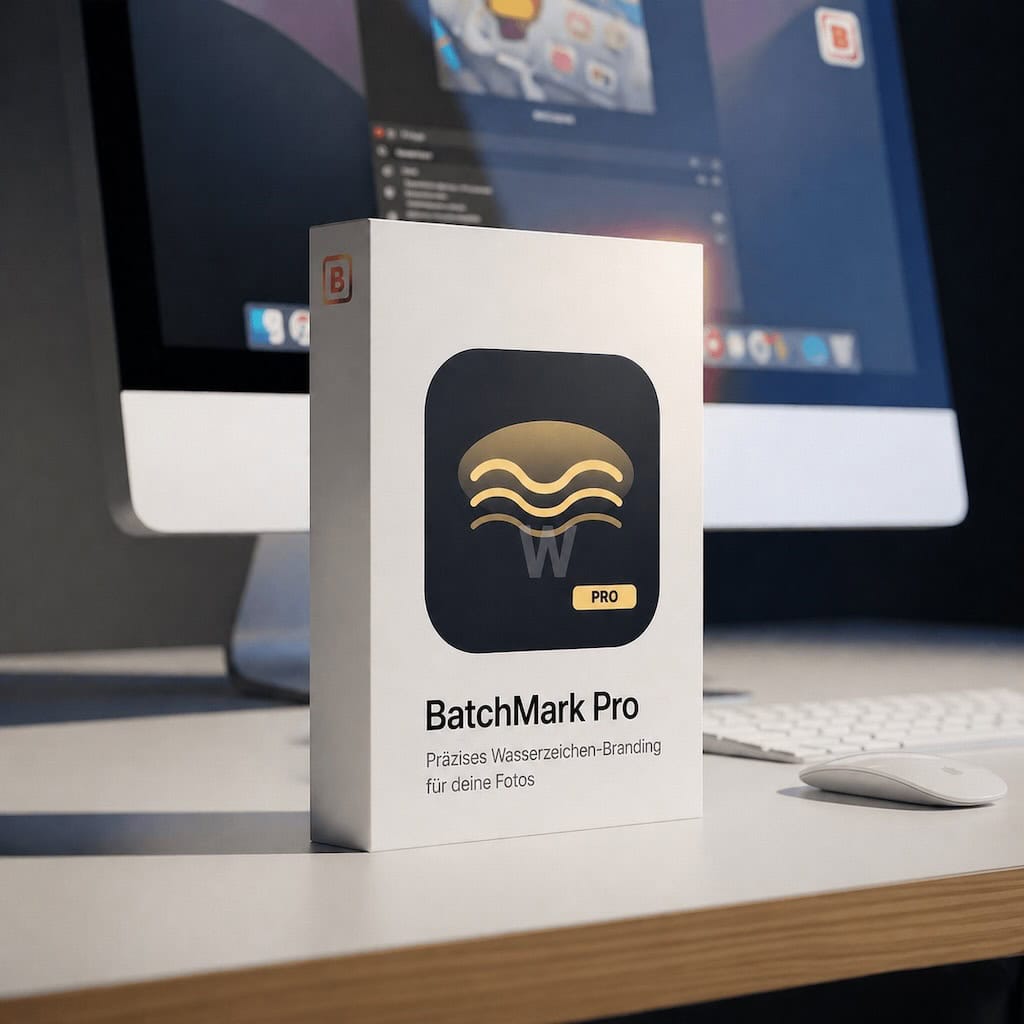
Combine Border Tool Pro and BatchMark Pro to create a consistent portfolio in record time.
Setup Once.
Always Consistent.
Border Tool Pro shapes your image, BatchMark Pro adds your branding. Once configured, it runs automatically on your Mac.
Everything important, explained quickly.
Yes. Processing runs via ImageIO. JPEG is saved at high quality (0.95) by default. EXIF metadata and color profiles are preserved whenever technically possible.
Yes – recursively, including all subfolders. Even 1000+ images are no problem. Processing runs in parallel across about 80% of available CPU cores, with progress + ETA.
Only if you actively choose “Replace Original.” The default is always a new file. When replacing, the original is moved to the Trash first – with a clear warning.
You choose a target aspect ratio (1:1, 4:5, 9:16, or 1.91:1). The original image is never cropped – the frame fills the difference instead. The result fits the platform without losing image content.
JPG, PNG, TIFF, BMP, GIF, HEIC, and HEIF as input. Output can keep the original format or switch to JPEG, HEIC, PNG, or TIFF – with individual quality and compression settings.
Yes. In Capture One, use “Open With…” inside the process recipe. In Lightroom, use “After Export → Open With.” BorderTool Pro then applies borders automatically using your current preferences.
You save complete border configurations: colors, widths, units, corners, shadows – everything. Load them instantly with ⌘1–8. Perfect for brand-consistent work across changing series.
No. BorderTool Pro is a one-time purchase. You own the app – no subscription, no monthly fees, no cloud dependency, no outside connection required.

Fotograf & Entwickler
Built from real practice.
For real workflows.
I have spent more than 18 years working as an independent photographer, YouTuber, and official Fujifilm X-Photographer. My daily work includes client galleries, series exports, and fine-art projects with hundreds of images. BorderTool came from a real problem – not from a feature brainstorm.
User feedback flows directly into updates – you can see it in the follow-up reviews: some customers wrote a second review only four days later because so many new features had already arrived.
What might still be holding you back.
True – but how long does it take you there? For 50 images, after a long shoot, when the upload is already waiting? BorderTool Pro does it in seconds, fully automatically, without opening an editor.
Fair enough. BorderTool Pro is Apple-notarized – macOS checks the app automatically on first launch. No security warning, no Gatekeeper issue. Just like an app from the App Store.
No. Everything happens 100% locally on your Mac. No servers, no cloud, no account. Your photos never leave your machine.
By default, the app always creates a new file. “Replace Original” is a deliberate option – with a clear warning and Trash fallback. So it only happens if you actively want it.
With very high probability, yes. Supported formats include JPG, PNG, TIFF, BMP, GIF, and HEIC/HEIF – including iPhone photos directly. If your camera writes a standard image format, it will work.
Take a look at the reviews – 5.0 out of 5.0. And if you have a question or something does not work: I am the developer and I reply personally. Not an AI, not a support ticket system.
Own it, do not rent it.
Native Mac app. Menu bar workflow. Live preview. Color Harmony. Black & white conversion. Presets. Double borders. Drop shadow. Polaroid. Random. Instagram formats. Clipboard. Window mode. Photos Extension. Batch processing. 12 languages.
One-time purchase. No subscription. Offline.
Mike Guilbault –
I’m a commercial, portrait and fine art photographer in Ontario, Canada, along the shores of beautiful Georgian Bay. I used the original version of Border Tools but was thrilled when Michael contacted me with the new BorderTools Pro! That’s what I call an UPGRADE! The ability to add two separate borders, corner styles, colours and then save them as presets is a game changer. The time savings alone was worth the upgrade, but it’s also so easy to use and configure to your liking. Highly recommended, and the support from Michael is second to none. I’d give it more stars if I could.
Nicht verifizierter Kauf. Mehr Informationen
AZ –
I’m a frame/border app connoisseur of sorts — I have bought and tested just about every one out there, especially on iOS. For macOS it really doesn’t get much better than this. I use PS, LR and Capture One, but I have been waiting for a fast purpose-built app like this for a long time. I know I am going to be a patron long-term, and am excited for future updates.
Verifizierter Kauf. Mehr Informationen
Karolos Iossif –
A very useful and easy to use tool! Can’t wait for the upcoming update. Well done sir!
Verifizierter Kauf. Mehr Informationen
Mario Zitko –
I have used other software to create frames but non come even close to BorderTool its a great product and will get better with upcoming update keep up the good work.
Verifizierter Kauf. Mehr Informationen
Lynton Jones –
I’ve spent ages trying to add borders simply and easily. I use Luminar Neo and adding borders with this is a nightmare. So I would export my photos into Pixelmator Pro, which is a little less of a nightmare, but still complicated. And then I discovered BorderTool Pro. It is a dream – just borders ,very simple and intuitive (after I discovered the comprehensive Help menu). This is exactly what an app should be. It does one job easily, simply without any of the complications that full scale photo editing applications drop on you.
First class! Thanks Michael for doing this.
Verifizierter Kauf. Mehr Informationen
Per Kinde –
This tool is a must in order to present images in a professionally way. It is easy to use and the double border is a wow! I have used up to now for more than 300 images and the borders really lift my images. It is very easy to set border widths and also very useful to have a preview. Apart from this I must say that the developer is superb in replying to questions and proposals. I can only recommend this for everyone that want borders for his images.
Verifizierter Kauf. Mehr Informationen